How to restyle a photo with AI
The short answer: restyling a photo with AI means handing a model your photo and a description of a target look, and getting the same subject back rendered in that look. There are two meaningfully different versions of it. One changes only colour and light and leaves your pose, clothing and room alone. The other keeps your face and rebuilds everything around it — new outfit, new location, new night. Both are one tap in Pose AI, and each suits a different photo.
Photo filters have been a solved problem for fifteen years. A filter is a fixed transformation: shift these colours, add this grain, crush these blacks. It does the same thing to every photo because it doesn't know what's in the photo.
AI restyling is different in one specific way — the model can see the picture. It knows which pixels are a face, which are a sweater, which are a window. That means it can change the sweater without touching the face, or move the window to Marrakech and leave you exactly where you're sitting. That's the whole capability, and everything below follows from it.
The two kinds of restyle, and when each one is right
Almost every AI photo tool is doing one of these two things, even when it doesn't name them.
1. Restyle — change the film, keep the scene
Your pose, framing, clothing and background all stay. What changes is the light and the colour: the film stock, the grade, the era, the time of day. A photo taken under a kitchen bulb becomes golden hour. A flat snapshot becomes noir.
Use this when you already like the photo and want it to look like it was taken by someone better with a better camera. It's also the safe option — because so little moves, the result reliably looks like the same moment.
2. Reimagine — keep the person, change the world
Your face survives. Everything else is up for negotiation: the outfit, the location, the whole situation. You're on your sofa; the photo is of you backstage, or on a rooftop, or on a night train.
Use this when the photo itself is unremarkable but you are in it. It asks much more of the model, so it's more dramatic when it works and more obviously wrong when it doesn't.
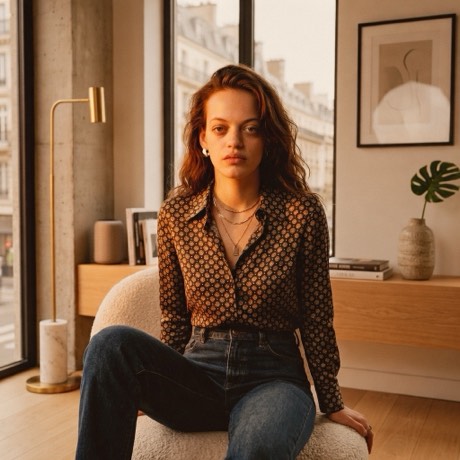
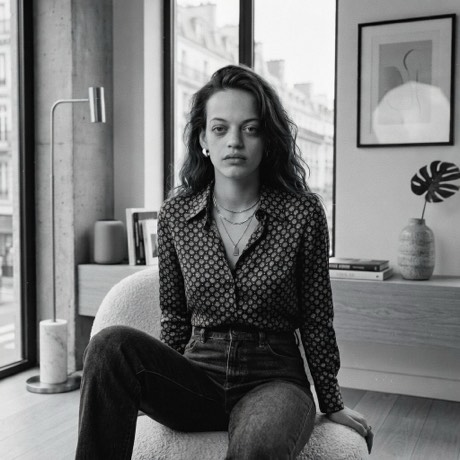
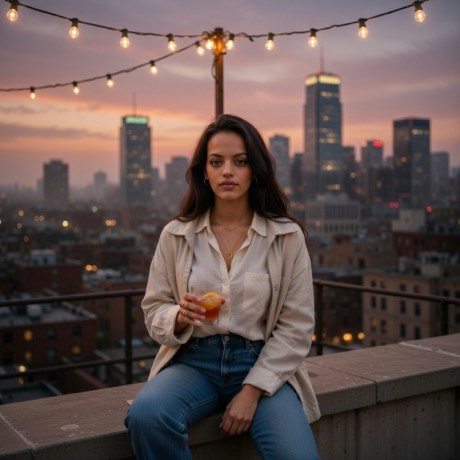
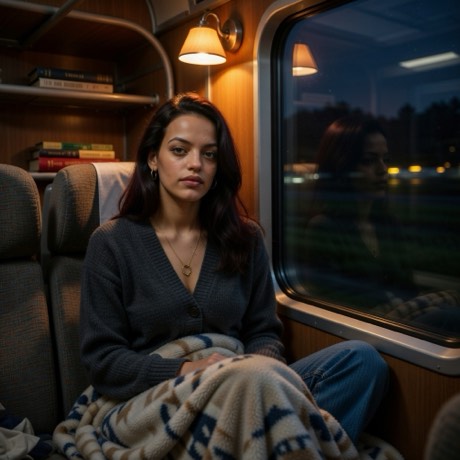
All four of those started as the same photograph — the first two are Restyle, the second two are Reimagine.
How to restyle a photo on iPhone
- Download the app — Pose AI, free on the App Store.
- Take the photo, or bring one in. Shoot straight from the app's camera, or pull in something already on your camera roll. Nothing leaves your phone until you pick a look.
- Pick a family. Pose AI groups its looks by what you're chasing — Animation, Decades, Directors, Places, Looks and Lighting — instead of showing you one undifferentiated wall of thumbnails.
- Choose Restyle or Reimagine. Some looks offer both and you pick; some only make sense as one. A stop-motion puppet isn't a lighting change, and Golden Hour isn't a new outfit.
- Wait about twenty seconds. Turn notifications on and the app taps you when it lands, so you're not watching a spinner.
- Save or share. Results land in the in-app gallery; from there they go to Photos or straight out to wherever you're posting.
What decides whether the result is good
The single biggest factor is the input photo, and it's the part people skip.
- Face clearly visible and reasonably lit. Everything downstream is built on the model reading your face correctly. A dark, blurry or heavily side-on face is the most common cause of a disappointing result.
- One clear subject. Group shots are harder — more faces means more chances for one of them to drift.
- Match the look to the photo. A tight indoor headshot doesn't have the room for a sweeping location change. A wider shot does.
- Don't fight a mode. If you want your actual outfit preserved, use Restyle. Asking a scene-replacement style to keep your clothes is asking it to do the opposite of its job.
Restyling vs. an AI image generator
A text-to-image generator starts from nothing and invents a person. Restyling starts from a photograph of a real person in a real room and transforms it. That difference matters for the thing most people actually want, which is a picture that is still recognisably them.
It also matters for effort. Prompting a generator into a specific look takes iteration and a vocabulary you may not have. Picking a named look from a library takes one tap, and the look was written and tested by someone who did have that vocabulary.
Be clear about the limits
This is generated imagery, and it behaves like generated imagery. Hands and fingers still go wrong. Text on signs, packaging and clothing comes out as approximate lettering. Fine jewellery, complex patterns and eyeglass frames drift. The more the model has to rebuild, the more of these you'll see — which is the honest trade-off in choosing Reimagine over Restyle.
Restyle your first photo tonight
Every look, both modes, on your iPhone.
Download on theApp StoreFree to download · iPhone · iOS 17+