Anime filter: how to turn a photo into anime
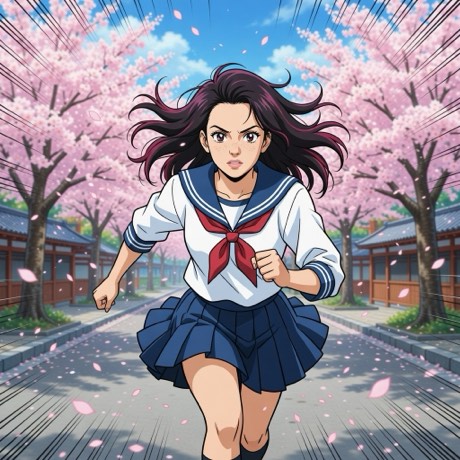
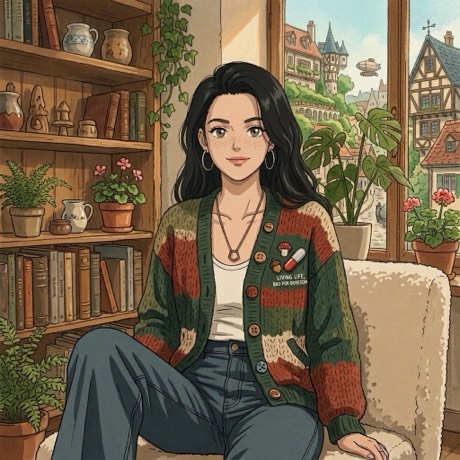
The short answer: an anime filter redraws your photo in the visual language of Japanese animation — flat colour fills, hard cel shading, ink linework, simplified features and large eyes. The good ones keep the geometry of your actual face underneath the style. Pose AI has several anime looks, including a modern cel style and a warmer retro one, and both run on a photo you take or one already on your phone.
What an anime filter actually changes
Anime isn't one effect, it's a set of drawing conventions that all fight photorealism at once:
- Flat colour, not gradients. Skin becomes one or two tones with a hard edge between them, rather than a continuous roll from light to shadow. This is cel shading, and it's the biggest single signal.
- Ink linework. A dark, deliberate outline around the figure and the interior features. Photographs have no lines — only edges — so adding them is what pushes the image from "filtered photo" into "drawing."
- Simplified, enlarged features. Eyes get bigger and more graphic; noses and mouths get reduced to a few marks. This is where filters most often lose your likeness.
- Redrawn hair. Hair becomes clumped shapes with specular highlights rather than individual strands.
- A style-consistent background. Your real room gets redrawn to match, or replaced entirely.
Why most anime filters make everyone look the same
Because the simplification step is the whole style, and simplification is exactly where identity lives. A model that pushes hard toward a canonical anime face — huge eyes, tiny nose, uniform jaw — produces a very convincing anime image of a person who isn't you. Push too gently and you get a photo with a filter on it.
The thing to look for is whether your proportions survive: the distance between your eyes, the width of your jaw, the shape of your hairline. Those, not detail, are what make a stylised face read as a specific person.
How to turn a photo into anime with Pose AI
- Download the app — Pose AI, free on the App Store.
- Take the photo, or bring one in. Shoot straight from the app's camera, or pull in something already on your camera roll. Nothing leaves your phone until you pick a look.
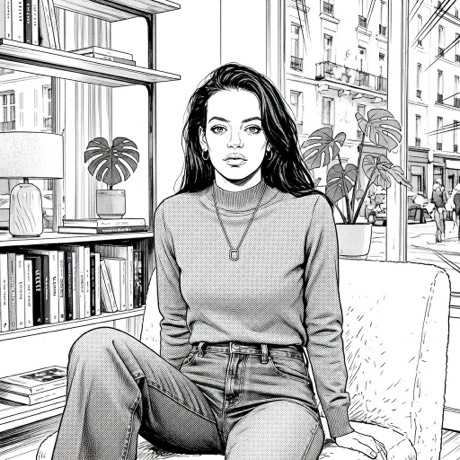
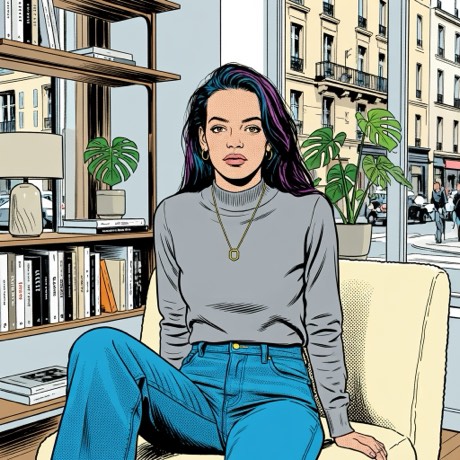
- Open the Animation family. That's where the drawn mediums live — Anime, Retro Anime, Manga, Comic Book, Pencil, Woodblock, Pixel, Rubber Hose, Stop Motion and Storybook.
- Pick your anime flavour. Anime is the modern, saturated cel look. Retro Anime is warmer and grainier, closer to hand-painted cels on film. Manga drops colour entirely for black-and-white screentone.
- Give it about twenty seconds, then save or share from the gallery.
Which anime look for which photo
Anime wants a clear, well-lit face and a bit of colour in the scene — it's the most graphic and the most forgiving. Retro Anime suits softer, warmer photos; on a cold clinical shot the palette shift can feel like a mismatch. Manga is the one to reach for when the photo has strong contrast already, because screentone needs light and dark to separate. A flat, evenly-lit photo turns to grey mush in manga.
Anime filter vs cartoon filter
People use the terms interchangeably and they aren't the same. Anime is a specific regional and historical style with its own rules about eyes, hair and shading. "Cartoon" is much broader — western comics, rubber-hose animation from the 1930s, flat modern storybook illustration. If you want the specific look you've seen in Japanese animation, ask for anime. If you just want to not look like a photograph, a cartoon style gives you more range.
What to expect, honestly
Hands are the usual casualty — if your hands are prominent in the frame, check them. Any lettering in the shot (a book spine, a logo on a shirt) comes back as convincing-looking nonsense. Glasses frequently change shape. And a face turned more than about forty-five degrees away from the camera gives the model much less to work with, so front-on or slightly angled shots hold up best.
Turn your photo into anime
Several anime styles, plus manga, comic and nine other drawn mediums.
Download on theApp StoreFree to download · iPhone · iOS 17+